Best 35mm Scanner for Mac: Top Picks for Easy Digital Archiving
Looking to digitize 35mm film and slides on a Mac without a complicated setup? This guide highlights five reliable 35mm scanner options that work well with Mac systems, offer strong image quality, and simplify the digitization process. Each pick targets a different buyer profile—from casual hobbyists to archival enthusiasts—so you can choose the best fit for your needs and budget.
Buyer summary table (at a glance):
| Product | Best For | Why It Stands Out |
|---|---|---|
| Kodak SCANZA | All-around digitization | Integrated 3.5″ display and versatile inserts |
| Film lovers with HDMI viewing | Built-in memory and large 5″ display | |
| Plustek OpticFilm 8200i SE | Deterministic archival work | Dust/scratch infrared, high resolution |
| Pacific Image PowerSlide X Plus | Batch scanning | Auto batch slides up to 50 |
| Plustek OpticFilm 8300i Ai | Advanced color calibration | SilverFast Ai Studio included, IT8 targets |
Kodak SCANZA Digital Film & Slide Scanner
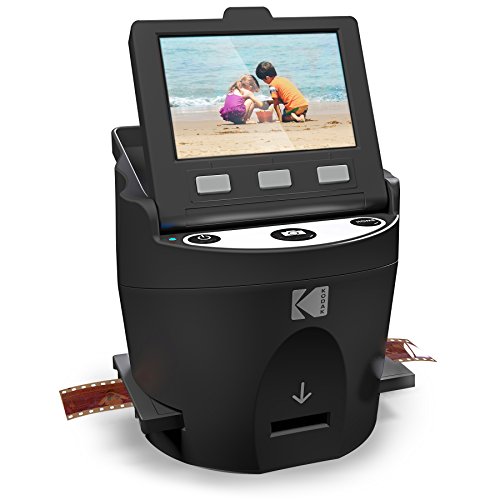
The Kodak SCANZA is designed to convert 35mm, 126, 110, Super 8, and 8mm negatives and slides into JPEGs. It includes a 3.5″ LCD to preview scans directly on the device and multiple film inserts for quick setup. Its one-touch scan button supports simple operation for non-technical users. Best for: collectors who value ease of use and multiple format compatibility without a computer.
Why chosen: The built-in display, broad format support, and dedicated inserts make it a strong Mac-friendly option for straightforward archival work. A potential limitation is that extended batch scanning may require manual intervention for consistency across large sets.
Best for: Beginners and casual archivists who want an all-in-one compact scanner with on-device preview and simple workflow.
Magnasonic All-in-One 24MP Film Scanner (FS71)

Magnasonic FS71 converts 35mm, 126, 110, and Super 8 film and 135/126/110 slides into high-resolution 24MP JPEGs. It offers a large 5″ LCD for viewing directly on the scanner and an HDMI output option (HDMI cable not included) for larger screens. It includes 128MB internal memory and an SD card slot up to 128GB, enabling offline scans with easy transfer to a Mac. Best for: Users who want a built-in display and direct TV/monitor viewing without a computer during the scan process.
Why chosen: The large display and HDMI output support make it appealing for hands-on review and sharing on a TV or monitor. Limitation: It relies on internal memory and an SD card for storage rather than a direct Mac workflow, so you’ll manage files post-scan.
Photo Scanner and Film Digitizer (5” Screen) – DigitPro
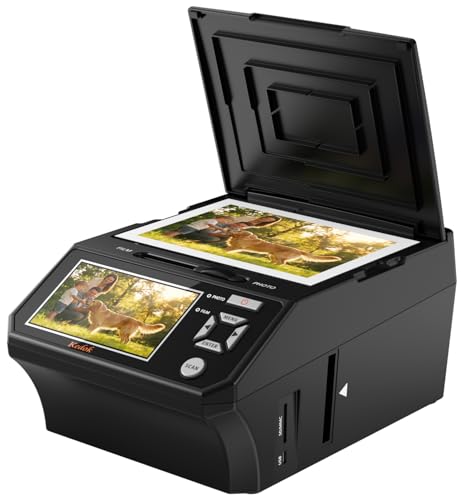
This standalone film scanner handles 35mm slides, 135 & 110 negatives, and printed photos with a 5″ LCD for preview. It’s a true all-in-one unit that does not require a computer for operation. Ideal for: households that want a simple, on-device workflow and quick sharing with the built-in 5″ display.
Why chosen: The large screen and broad media compatibility support a straightforward digitization path. Caution: Some users may prefer higher resolution than 22MP for archival-grade work.
Pacific Image PowerSlide X Plus 35mm Slide Scanner

The PowerSlide X Plus is tailored for batch processing, capable of scanning up to 50 slides per batch with an included magazine. It uses a true RGB linear array CCD at 10,000 dpi for high color accuracy and detail, making it a strong choice for archival labs and large collections. Best for: Scanning large slide libraries efficiently and maintaining color fidelity.
Why chosen: Batch scanning dramatically improves throughput for big archives. Limitation: It may be overkill for small collections and requires a Mac or PC with the appropriate software for optimal results.
Plustek OpticFilm 8200i SE – 35mm Film & Slide Scanner

The 8200i SE offers 7200 dpi optical resolution and 48-bit color output, with an integrated infrared channel for dust and scratch removal. It supports high-detail scanning of 35mm negatives and mounted slides, and pairs with SilverFast or similar software for advanced processing. Best for: Archivists who need meticulous dust removal and high-resolution output for long-term preservation.
Why chosen: Infrared dust/scratch removal helps maintain image quality in archival workflows. Limitation: Requires compatible software and a Mac setup to manage calibration and workflow beyond the basics.
Buying Guide: Practical Considerations For Mac Users
- File quality vs. convenience: Higher dpi yields crisper scans but larger files and longer processing times. Choose based on archival needs versus casual sharing.
- Mac compatibility: Look for scanners that export standard formats (JPEG, TIFF) and work with macOS without heavy drivers. Standalone units can be convenient but may require after-scan management on Mac.
- Display and workflow: Built-in LCDs aid on-device previews; HDMI outputs help with larger displays. Consider whether you want on-device review or computer-based editing.
- Media compatibility: Ensure the scanner supports your film types (35mm, 110, 126, Super 8) and slides. Some models emphasize slides, others prioritize negatives.
- Dust and scratch handling: Infrared dust removal and high dynamic range help with archival quality. This matters if you’re archiving old or fragile film.
- Batch processing capability: For large collections, batch scanning can dramatically reduce time. Check magazine capacity and ease of reloading.
- Software workflow: Some scanners come with bundled software; others rely on third-party editors. Consider IT8 calibration for color accuracy if exact fidelity matters.
Frequently Asked Questions
- Can these scanners work without a computer on Mac?
Some models operate standalone with on-device previews, but many require a computer for full editing and management. Check individual product details for software requirements.
- What dpi is typically sufficient for photo archiving?
For general archiving, 6000–7200 dpi is common; for detailed restoration or large prints, higher dpi like 10,000 dpi may be desirable depending on the model.
- Are infrared dust/scratch removal features worth it?
Yes, for archival work, infrared dust removal helps clean up imperfections without manual retouching. This is especially beneficial for older negatives and slides.
- Is a built-in display necessary?
Not strictly necessary, but a large display makes previewing and selecting frames easier, especially for beginners or when you’re digitizing non-computer workflows.
- Should I pick batch scanning or single-sheet scanning?
If you have many slides, batch scanning saves time. For smaller, careful projects, single-sheet scanners can offer more control per frame.